1 - Create clusters
Before creating a cluster, confirm the platform is healthy, nodes are registered and ready, and resource versions match node architecture. Complete Getting started to validate the deployment path.
Create in the Console
Create a cluster from the cluster page. Set a name, control-plane and worker nodes, component versions, and Pod / Service CIDRs that fit your network. Plan control-plane availability, API access, and storage for production deployments; a single-node lab configuration is insufficient.
Use the 1.7 component matrix. Upload missing resources first. See Registry for private image settings; image registries and component packages serve different purposes.
CLI and verification
Offline cluster creation includes a CLI example with explicit versions. After submitting the request, inspect the Operation and confirm cluster state, Ready nodes, system Pods, and Kubernetes API health. Preserve logs when troubleshooting; resetting state does not resolve failed installation steps.
2 - Cluster hosting
Kubeadm cluster hosting
For a host cluster created and managed by kubeadm, kubeclipper gets the cluster and node information from the kubeconfig file and imports it into the kubeclipper platform.
Click “Cluster Management” > “Cluster Hosting” button to enter the cluster hosting page. Click “Add” button at the upper left corner. In the pop-up window of Add Provider, fill in the provider name (such as kubeadm-demo) and description, and then fill in the following information:
Region: The region of the cluster and node in the kubeclipper platform.
Provider type: Select kubeadm.
SSH: Specifies the connection method of cluster nodes. Private Key or Password can be selected. Ensure that all cluster nodes can be connected through the selected method.
- Private Key: enter the node user name and private key information.
- Password: enter the node user name and password.
Cluster name: Specifies the display name on the platform and cannot be the same as any other clusters.
KubeConfig: The KubeConfig file of the host cluster.
Click the “OK” button to import the cluster and node into the platform. Click the provider name (kubeadm-demo) to enter the Provider detail page, where you can view the cluster under the provider and perform the following operations on the provider:
- Synchronization: Kubeclipper synchronizes cluster information every four hours. You can also click “Synchronize” to manually perform the operation.
- Edit: Edit the provider’s name, description, access information, and node connection method.
- Remove: Detach platform management while preserving Kubernetes itself. Cleanup also removes imported kc-agent installations and platform-created ServiceAccount, ClusterRoleBinding, and kubectl terminal resources. Previously managed nodes follow separate preservation rules. Check node ownership and retain kubeconfig before removal.
Managed cluster management
You can choose “Cluster Management” > “Cluster” to go to the cluster list page and view the list of all clusters, including hosted clusters and local clusters. The following table lists the operations supported by different clusters:
Image sources for plug-ins and external storage depend on the selected component package and configuration. Prepare images before offline installation and confirm that every node can pull them. Configure the CRI registry first when authentication or a private CA is required.
| Function | Clusters created by Kubeclipper | Hosted kubeadm cluster |
|---|---|---|
| View log | ✔ | ✔ |
| Retry after failed task | ✔ | ✔ |
| Access Kubectl | ✔ | ✔ |
| Edit | ✔ | ✔ |
| Save as template | ✔ | ✘ |
| CRI Registry | ✔ | ✔ |
| Add/remove cluster nodes | ✔ | ✔ |
| Cluster Backup and Recovery | ✔ | ✔ |
| Version Upgrade | ✔ | ✘ |
| Delete cluster | ✔ | ✘ |
| Remove cluster (provider) | / | ✔ |
| Reset status | ✔ | ✔ |
| Cluster plugin management | ✔ | ✔ |
| Update cluster certificate | ✔ | ✔ |
| View kubeconfig file | ✔ | ✔ |
3 - Cluster management
KubeClipper 1.7 executes cluster lifecycle work through Operation v2. Inspect the cluster object, then confirm outcomes using operation details and actual nodes.
kcctl get cluster
kcctl get cluster demo -o yaml
kcctl operation list -c demo
Logs, retries, and cancellation
See operations and logs for commands. Resolve the cause of a failure before retrying. Resetting cluster state does not repair nodes or undo completed work.
Access a cluster
Obtain kubeconfig from the Console cluster details page, set KUBECONFIG, and run:
kubectl get nodes -o wide
kubectl get pods -A
kubectl get --raw='/readyz?verbose'
Healthy platform status does not establish the health of every managed cluster. After upgrades, scaling, backup, or recovery, inspect the relevant nodes, system Pods, and application data.
Scaling and registries
Use kcctl join to register new machines with the platform. Confirm that nodes are Ready and in the cluster’s region before adding them from the cluster details page. Evacuate workloads and check remaining capacity before removing cluster nodes. Platform kcctl drain removes an Agent; it is a separate operation from shrinking a cluster. See node management.
Configure Kubernetes image repositories and containerd pull registries separately. See registries and verify actual image pulls after changes.
Backup and restore
- Configure a backup space and associate it with the cluster through the edit action. For directory backup spaces, create and mount the agreed path on the relevant nodes and confirm write access.
- Start a backup, or configure a scheduled backup with its execution time and retention count. Confirm successful backup status and readable files.
- Select a backup belonging to the cluster for restoration. Follow its Operation, then check the API, nodes, system Pods, and application state.
Cluster backups center on Kubernetes etcd snapshots. They do not include application files in persistent volumes; back up those separately. Restoration changes cluster state. Rehearse in an isolated environment: the existence of a backup record alone does not establish recoverability.
Upgrade Kubernetes
Kubernetes upgrades are separate from KubeClipper platform upgrades. Back up the cluster, validate restoration, and check target component resources, images, and workload compatibility before selecting a target in the cluster upgrade action. This action is unavailable for hosted kubeadm clusters.
Inspect the CLI parameters with:
kcctl cluster upgrade --help
Use --cluster-name and --version to select the cluster and target. Offline mode is the default; --online selects online mode and --image-registry selects a configured Registry resource. The target must exist in platform resources. The support matrix does not guarantee successful upgrades between every listed version. Follow the resulting Operation and repeat the cluster health checks above.
Delete a cluster
Back up workloads and data before deletion, then follow the Operation:
kcctl delete cluster demo
kcctl operation list -c demo
kcctl get cluster
Confirm deletion has finished before reusing nodes. Preserve errors and node state for diagnostics; forced deletion does not establish that cleanup completed.
4 - Node management
Region management
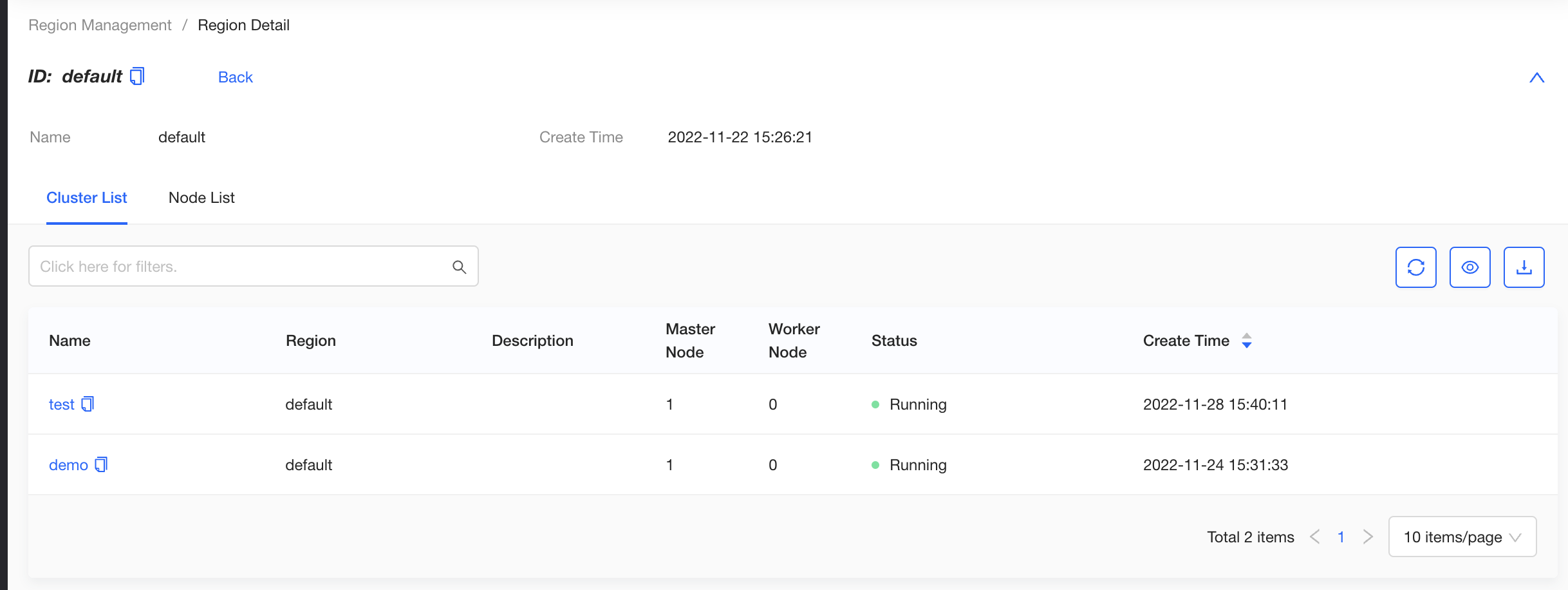
KubeClipper supports multi-region management. That is, all nodes and clusters managed by the platform are divided into physical or logical regions. On the Region Management page, you can view all regions in the platform. Click a region name to enter the region detail page, and you can view the clusters and nodes in the region.
Node management
The platform supports multi-region management, that is, the owning region of all nodes managed by the platform. On the Region Management page, you can view all regions managed by the platform. Click a region name to go to the region details page, where you can view the list of all clusters and nodes in the region.
On the “Node Info” page, you can view the list of all nodes managed in the platform, node specifications, status and other information. Click the node name to enter the node detail page, you can view detailed node basic information and system information.
The node status in KubeClipper represents the management status of the node by kc-agent. Under normal circumstances, the node status is displayed as “Ready”. The default monitoring grace period is 4 minutes, checked every 10 seconds. After the grace period, the status changes to “Unknown”; scheduling or communication delays can affect when the change becomes visible. Investigate the Agent, network, and Server connectivity before scheduling new cluster installation or expansion on an unknown node.
Add node
When deploying KubeClipper, you can add the initial server nodes which are used to deploy KubeClipper's own services, and agent nodes which are used to deploy kubernetes clusters. In a KubeClipper environment for experimentation or development, you can add a server node as an agent node at the same time. However, if it is used for a production environment, it is recommended not to reuse the server node as an agent node.
You can also use the kcctl join command to add agent nodes to KubeClipper, and mark a region for each agent node. The region can be a physical or logical location. You can use nodes in the same region to create a kubernetes cluster, but cannot use nodes across regions to create a cluster. Nodes in unmarked regions belong to the default region.
Command line example:
kcctl join --agent beijing:1.2.3.4 --agent shanghai:2.3.4.5
Remove node
When you no longer need some nodes, you can use the kcctl drain command to remove nodes from the platform.
Command line example:
kcctl drain --agent 192.168.10.19
Connect Terminal
On the node list page, you can click the “Connect Terminal” button on the right side of the target node, enter the node port and username password information in the pop-up window, access the node SSH console and execute command tasks.
Enable/disable a node
You can click the Disable button on the right side of the node to temporarily disable the node. The node in the disabled state cannot be created or added to the cluster.
5 - Access control
Create user
After installing KubeClipper, you need to create a user of a desired role. Initially, there is only one user, admin, by default, with the platform administrator role.
Click “Access Control” > “Users” to enter the user management page, click the “Create User” button in the upper left corner, fill in the user name, password, alias name and other information in the pop-up window, specify the user role, and click the “OK” button. The four initial roles in the system are as follows:
platform-admin: Platform administrator, with the authority to set platform, cluster management, user management, audit, etc.
cluster-manager: Cluster administrator, with all cluster management permissions.
iam-manager: User administrator, with all user management permissions.
platform-view: Platform read-only user, with all platform viewing permissions.
After the user is created, you can view the user details and login logs on the user detail page and perform the following operations:
Edit: Edit user alias, role, mobile phone number, email information.
Edit Password: Edit the user login password.
Delete: Delete the user.
Create a custom role
In addition to system initial roles, you can also create customized roles to meet business needs.
Click “Access Control” > “Roles” to enter the role management page. You can click the “Create Role” button in the upper left corner to create a custom role.
On the Create Role page, you need to fill in the role name and description, and check the permissions required. Some permissions depend on other permissions. When these permissions are selected, the dependent permissions will be automatically selected.
After creating a customized role, you can view the basic role information, role permission list, authorized user list on the role detail page, and perform the following operations:
Edit: Edit the custom role description.
Edit permissions: Edit permissions of the customized role.
Delete: To delete a customized role, make sure that no user is using the role to be deleted.
Access to external users
External users can log in to KubeClipper via the OIDC protocol .
First, the platform administrator needs to log in to the platform server node and insert the following information under “authentication” in the kubeclipper-server.yaml file:
oauthOptions:
    identityProviders:
    - name: keycloak
      type: OIDC
      mappingMethod: auto
      provider:
        clientID: kc
        clientSecret: REPLACE_WITH_CLIENT_SECRET
        issuer: https://idp.example.com/realms/kubeclipper
        scopes:
        - openid
        - email
        redirectURL: https://console.example.com/oauth2/redirect/keycloak
Merge this fragment under authentication in the existing configuration. Replace the example domains and REPLACE_WITH_CLIENT_SECRET. Register exactly the same redirectURL with the IdP; its final path component must match the provider name. Update each Server and restart kc-server one node at a time.
Under “provider”, you need to fill in the clientID , clientSecret , and issuer information of your OAuth2 service, taking keycloak as an example, as shown in the figure below.
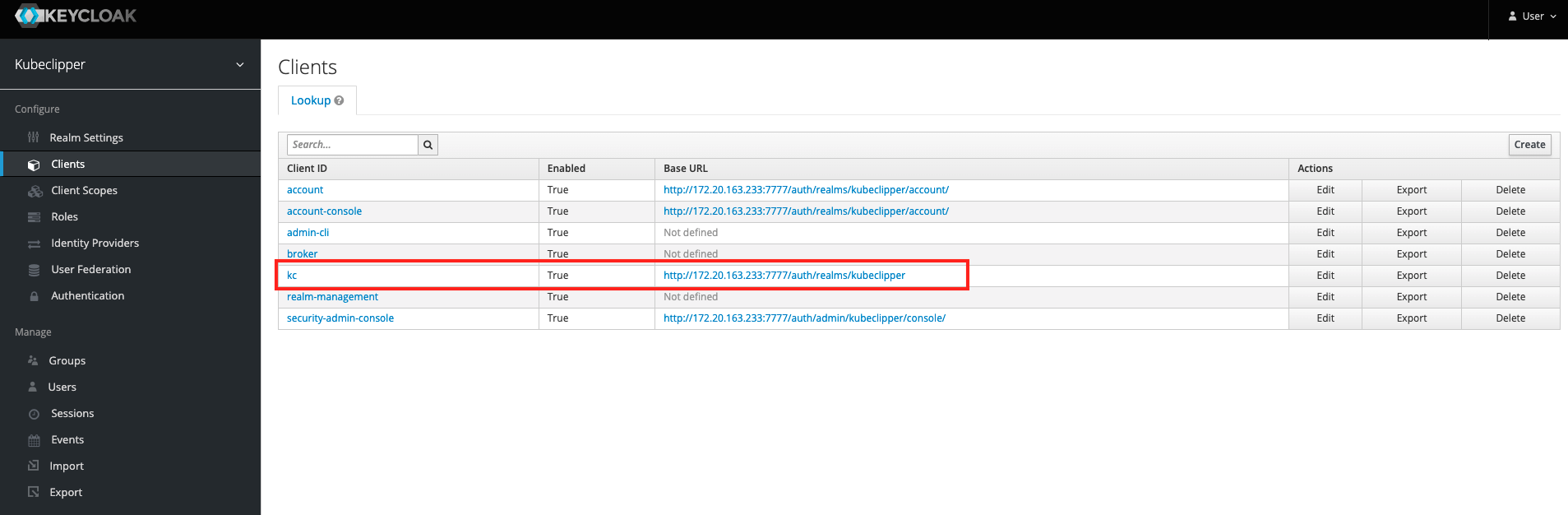
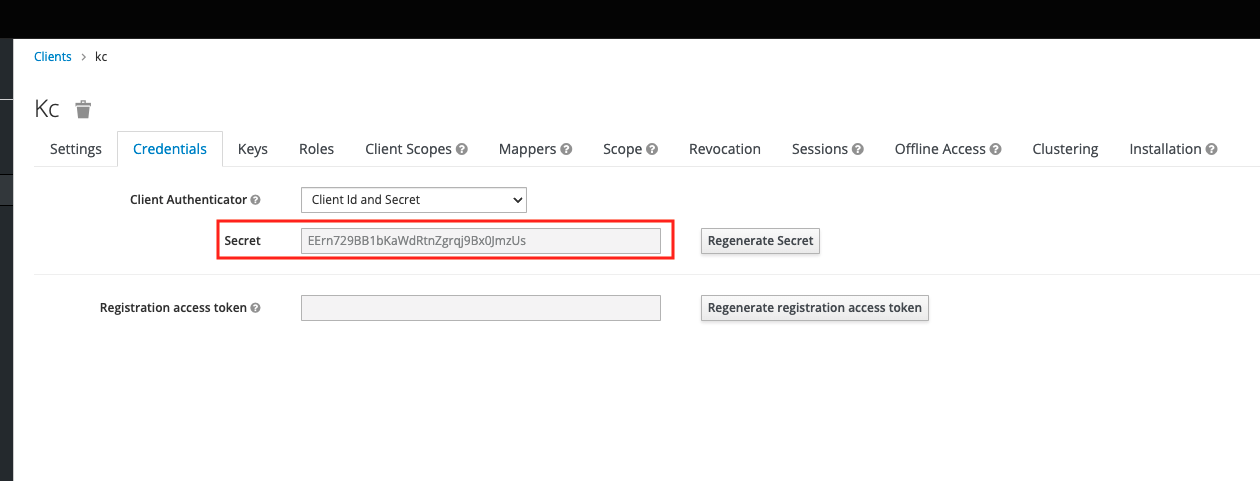
RedirectURL example: https://console.example.com/oauth2/redirect/keycloak
OAuth2 users can log in to the KubeClipper platform by following these steps:
Click the “OAuth2 Login” button on the login page, enter the OAuth2 login page, fill in the username and password to enter the KubeClipper platform. When logging in for the first time, you will not be able to access the platform because you have not been granted any permission.
The platform administrator or other user with user management rights log in to KubeClipper, find the target OAuth2 user on the user management page, and set the user role by editing the user information.
The OAuth2 user repeats the first step, logs in to KubeClipper, and accesses the platform normally.
6 - Operations and logs
KubeClipper 1.7 represents installation, upgrades, backup, and deletion as Operations, with Tasks assigned by step and node. A successful submission means the request was accepted; query its result afterward.
Find an operation
kcctl operation list
kcctl operation list -c demo
Copy an actual operation ID from the list, then inspect details and logs:
OPERATION_ID='<actual operation ID>'
kcctl operation describe "$OPERATION_ID"
kcctl operation logs "$OPERATION_ID"
kcctl operation logs "$OPERATION_ID" --follow
Use logs to identify the failed step and node. In an interactive terminal, open the cluster’s TUI log viewer:
kcctl operation logs --cluster demo
Use the operation-ID commands for plain-text logs in scripts and non-interactive terminals.
Handle a failure
Preserve operation details, failed-node logs, and cluster state. Resolve the missing package, image download, node connectivity, or service problem before retrying:
kcctl operation retry "$OPERATION_ID"
kcctl operation describe "$OPERATION_ID"
kcctl operation logs "$OPERATION_ID" --follow
Check actual cluster and node state after the retry. Its command return value alone does not establish recovery. If parameters are wrong, review the task configuration rather than retrying repeatedly.
Cancel work
kcctl operation cancel "$OPERATION_ID"
kcctl operation describe "$OPERATION_ID"
Cancellation does not roll back installation or data changes that have already happened. Confirm tasks have stopped and inspect existing changes on the nodes before cleanup.
Confirm the result
Check the Operation result, kcctl get cluster demo -o yaml, Kubernetes nodes, and system Pods together. After cluster deletion, check the platform list and node residue. See platform diagnostics for platform-level issues.
7 - Platform diagnostics
Locate the failing layer first: the platform, Agent, resource downloads, or the Kubernetes cluster.
| Symptom | Start with |
|---|---|
| Console does not open or API connection fails | Platform health; check the console and API addresses and ports |
| Agent or node is not ready | Node services; inspect service logs and connectivity |
| Deployment precheck or resource download fails | Deployment failures; follow the reported node and check |
| Cluster creation task fails | Cluster task failures; locate the Operation and failing step |
Platform health
kcctl version
kcctl status
kcctl status -o json
kcctl doctor
status summarizes kc-server, kc-etcd, and kc-agent health. doctor checks local access, services, platform etcd, and Agents, with evidence for failed checks. Unhealthy results return a nonzero exit code for scripting. Neither command repairs the environment.
If the API cannot be reached, check that kcctl login points to the HTTPS API endpoint, normally port 8080. Inspect local login and deployment configuration and SSH connectivity from the deployment host.
Node services
Run on the relevant Linux node:
sudo systemctl status kc-server kc-etcd kc-agent --no-pager
sudo journalctl -u kc-server -n 100 --no-pager
sudo journalctl -u kc-agent -n 100 --no-pager
An Agent-only node is not expected to run a Server or platform etcd. Interpret service results according to node roles. Check disk space, clock synchronization, management addresses, and firewall rules.
Deployment failures
Precheck errors identify the check and node. If services already exist, establish whether they belong to an active platform before changing anything. For download failures, verify the URL, certificate, file size, and archive contents. Do not hide certificate failures by disabling verification.
Cluster task failures
kcctl operation list -c demo
kcctl get cluster demo -o yaml
kcctl get node
kcctl resource list
Use operations and logs to locate the failing step and node. Check package versions and architectures for offline installation. For image pull failures, check the registry address, credentials, and connectivity. Include versions, topology, sanitized errors, and operation IDs in an issue; remove passwords, tokens, private keys, and kubeconfig credentials.
8 - Image registries
A Registry resource describes a Kubernetes image source or adds image-pull configuration to containerd. It is separate from platform offline resource packages. Creating a Registry does not copy images into it.
Create a Registry
The following example describes an HTTP registry on a management network. Configure HTTPS, CA trust, and authentication for your actual registry; consult command help for all flags.
kcctl create registry --name internal --host registry.example.com:5000 --scheme http
kcctl get registry
kcctl create registry -h
Authentication uses --auth-username and --auth-password; protect credentials from shell history and terminal logs. For HTTPS, review --ca and --skip-tls-verify instead of reusing the HTTP example unchanged.
Select a registry for a cluster
kcctl create cluster --name demo --master 192.168.10.21 \
  --k8s-version v1.37.0 --cri containerd --cri-version 2.2.4 \
  --cni calico --cni-version v3.31.5 \
  --image-registry internal --cri-registry internal
--image-registryselects a Registry resource for Kubernetes images.--cri-registryadds Registry configuration to containerd; select multiple resources as needed.- Without an explicit image registry, components use their own defaults and applicable Agent image-mirror settings. Kubernetes and Calico do not necessarily use the same default repository.
Populate the registry with the required images first. Check actual image paths, authentication, certificates, and connectivity from cluster nodes. Offline installation also needs the resource packages.